Just before last weekend I noticed that a website I’m responsible for started spitting out “Server is busy” messages, not something you want to see on a website with millions of visitors per day. The quickfix was to recycle the application pool, and thus I solved the symptoms by setting a 15 mins recycle cycle on all the application pools. Not exactly optimal, but sometimes pissing your pants is the way to go.
The first step I made to analyze what was causing this is the Performance Monitor tool. We weren’t experiencing above average traffic, so that couldn’t explain it. What first struck me was the the “ASP.NETRequests Queued” queue was 0, not 5000+ as I’d expected! That meant the requests were not being queued, so the server didn’t have trouble handling the requests themselves. The reason was to be found in the “ASP.NETRequests Current” counter. This was constantly rising even though the CPU, memory and disk counters looked fine. It obviously didn’t look like a performance problem, more like a configuration issue. So I increased the appQueueRequestLimit to 20k and set the recycle cycle to 30 minutes, at most the “ASP.NETRequests Current” went to about 10k before being recycled and thus reset to 0.
Now, that didn’t fix the problem, just the symptom. We hadn’t experienced this issue previously, so I thought back at what changes had been made in the latest release version. The primary functionality of the system is to serve images, thus we have an Image.ashx file with a responsibility of serving the images as well as logging various parameters of the request. The previous system version had a funtionality like so:
- Find image path
- Response.TransmitFile()
- Logging
The disadvantage of doing it that way is that the client will not have the image served before the statistics have been logged, even though that’s purely a serverside functionality. I wanted the client to receive the image as quickly as possible, and then letting the server continue its job afterwards. The obvious solution is to spawn a new thread doing the logging, but with the amount of requests we’ve got, I really don’t want to spawn any more threads than absolutely neccessary, excessive context switching will have a negative impact when the thread count gets high enough. So the new version functioned like this:
- Find image path
- Response.TransmitFile()
- Response.Flush()
- Response.Close()
- Logging
This had the great advantage that the client receives the image immediatly while the server continues logging afterwards. We use only a single thread, the actual request thread. A friend of mine pointed out I might want to move the logging out of the ASP.NET worker process so as to not block incoming requests. The thing is, this will require new thread spawning, and I really don’t mind blocking a worker process as we can easily tune the amount of concurrent worker processes, and the “Server too busy” functionality is actually there for a reason – I don’t wanna end up in a situation where the server is running a million logging threads but still accepting new connections willingly – in _that_ case, I’d really like the server to block new requests.
Anyways, although this looked good, this was the sole reason for the “Server too busy” errors we were experiencing! After some testing I discovered that if you call Response.TransmitFile() and then afterwards call Response.Close(), the request process is stuck! It will simply keep on living, and thus the “ASP.NETRequests Current” counter will keep increasing. It will not be removed until a pool recycle event is fired! This does not happen if you use Response.WriteFile, Response.BinaryWrite or if you manually stream the file, only if you use TransmitFile!
This will kill your application:
protected void Page_Load(object sender, EventArgs e) { Response.Buffer = false; Response.TransmitFile("Tree.jpg"); Response.Close(); }
But this won’t:
protected void Page_Load(object sender, EventArgs e) { Response.WriteFile("Tree.jpg"); Response.Flush(); Response.Close(); } protected void Page_Load(object sender, EventArgs e) { Response.BinaryWrite(File.ReadAllBytes(Server.MapPath("Tree.jpg"))); Response.Flush(); Response.Close(); } protected void Page_Load(object sender, EventArgs e) { int chunkSize = 64; byte[] buffer = new byte[chunkSize]; int offset = 0; int read = 0; using (FileStream fs = File.Open(Server.MapPath("Tree.jpg"), FileMode.Open, FileAccess.Read, FileShare.Read)) { while ((read = fs.Read(buffer, offset, chunkSize)) > 0) { Response.OutputStream.Write(buffer, 0, read); Response.Flush(); } } Response.Close(); }
I can replicate the exact same errors on Server 2003 with IIS running i *32 mode, Vista x64 and Server 2003 in x64 mode. It does not matter if you’re running ASPX pages or ASHX HttpHandlers, same problem.
I used this code snippet to get a list of the current active requests in IIS (to verify that the “ASP.NETRequests Current” and “W3SVC_W3WPActive Requests” are not lying:
ServerManager iisManager = new ServerManager(); foreach (WorkerProcess w3wp in iisManager.WorkerProcesses) { Console.WriteLine("W3WP ({0})", w3wp.ProcessId); foreach (Request request in w3wp.GetRequests(0).Where(req => req.Url == "/default.aspx")) { Console.WriteLine("URL: " + request.Url); Console.WriteLine("TimeElapsed: " + request.TimeElapsed); Console.WriteLine("TimeInState: " + request.TimeInState); Console.WriteLine("TimeInModule: " + request.TimeInModule); Console.WriteLine("CurrentModule: " + request.CurrentModule); Console.WriteLine("PipelineState: " + request.PipelineState); Console.WriteLine(); } }
W3WP (7580) URL: /default.aspx TimeElapsed: 4223509 TimeInState: 4223509 TimeInModule: 4223509 CurrentModule: IsapiModule PipelineState: ExecuteRequestHandler URL: /default.aspx TimeElapsed: 2529463 TimeInState: 2529463 TimeInModule: 2529463 CurrentModule: IsapiModule PipelineState: ExecuteRequestHandler URL: /default.aspx TimeElapsed: 2527809 TimeInState: 2527809 TimeInModule: 2527809 CurrentModule: IsapiModule PipelineState: ExecuteRequestHandler URL: /default.aspx TimeElapsed: 2521117 TimeInState: 2521117 TimeInModule: 2521117 CurrentModule: IsapiModule PipelineState: ExecuteRequestHandler URL: /default.aspx TimeElapsed: 2516562 TimeInState: 2516562 TimeInModule: 2516562 CurrentModule: IsapiModule PipelineState: ExecuteRequestHandler URL: /default.aspx TimeElapsed: 2515470 TimeInState: 2515470 TimeInModule: 2515470 CurrentModule: IsapiModule PipelineState: ExecuteRequestHandler URL: /default.aspx TimeElapsed: 2514378 TimeInState: 2514378 TimeInModule: 2514378 CurrentModule: IsapiModule PipelineState: ExecuteRequestHandler URL: /default.aspx TimeElapsed: 2291749 TimeInState: 2291749 TimeInModule: 2291749 CurrentModule: IsapiModule PipelineState: ExecuteRequestHandler
So obviously the requests are there, they’re just stale.
If we take a look at an IISTrace trace, we can see all of the requests in the “Send data” state. They have all sent all the data and no further data is being sent, but they’re still stuck in the “Send data” state:
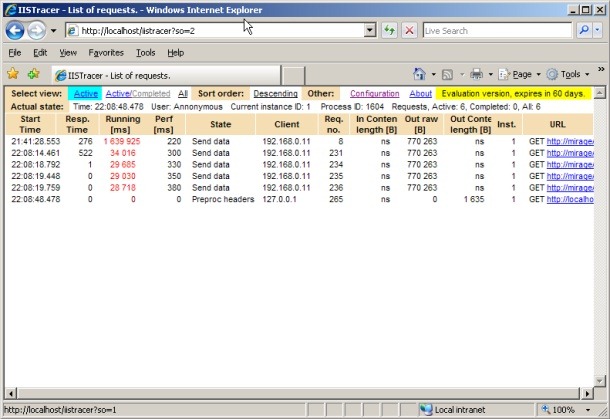
For all the other ways to send the file, the request exits the Send data state as soon as all processing is done (that is, not directly after Response.Close). Calling Response.End has no influence.
Symptoms
You may be experiencing this problem without knowing it. Unless you have a some load on your site, chances are you will never actually see this problem. While the requests will go stale and continue to live, a recycle event will kill them off as the process is closed. But you will see this in your System log:
A process serving application pool ‘Classic .NET AppPool’ exceeded time limits during shut down. The process id was ’13304′.
Since the requests continue living, recycling the pool will time out and thus force the process to shut down, and thereby generating the above event. This may lead to increased memory usage depending on your recycle settings. So unless you have more requests than the Request queue limit setting on your application pool, within the recycle period, you will not notice this problem.
Fix
The easiest way to get around this problem (bug?) is to just spawn a new thread doing the logging so the main thread will complete right after TransmitFile. In most cases the logging operation will be rather fast so the threads will be shortlived and thus not create too many concurrent threading operations.
Response.Buffer = false; Response.TransmitFile("Tree.jpg"); Thread t = new Thread(delegate() { // Logging }); t.Start();
Bonus code
Jonathan Gilbert posted a couple of great comments regarding spawning your own threads in the process and the possibility of extracing the actual logging process into a separate service. Since my blogs comments suck in regards to posting code, here are his code parts:
static object log_sync = new object(); static Queue<LogData> log_queue = new Queue<LogData>(); static bool log_thread_running = false; static void post_log_entry(LogData log_entry) { lock (log_sync) { log_queue.Enqueue(log_entry); if (log_thread_running) Monitor.PulseAll(log_sync); else new Thread(log_thread_proc).Start(); } } static void log_thread_proc() { lock (log_sync) { if (log_thread_running) return; log_thread_running = true; try { while (true) { while (log_queue.Count == 0) Monitor.Wait(log_sync); LogData one_item = null; List<LogData> multiple_items = null; if (log_queue.Count == 1) one_item = log_queue.Dequeue(); else { multiple_items = new List<LogData>(log_queue); log_queue.Clear(); } // The following block: Exit; try/finally{Enter} // ..is the logical inverse of a lock() block. :-) Monitor.Exit(log_sync); try { if (one_item != null) process_log_entry(one_item); if (multiple_items != null) foreach (LogData item in multiple_items) process_log_entry(item); } finally { Monitor.Enter(log_sync); } } } catch (Exception e) { // TODO: log this unexpected error } finally { log_thread_running = false; } } }
static object log_sync = new object(); static BinaryFormatter log_formatter = new BinaryFormatter(); // in System.Runtime.Serialization.Formatters.Binary static Stream log_stream; static void post_log_entry(LogData log_entry) { lock (log_sync) { if (log_writer == null) { Socket socket = new Socket(AddressFamily.InterNetwork, SocketType.Stream, ProtocolType.Tcp); // In practice, I would let the OS pick the port number when binding in the Windows Service // and write it to a central location that the ASP.NET process can read from. socket.Connect(new IPEndPoint(IPAddress.Loopback, SecretPortNumber)); log_stream = new NetworkStream(socket, true); } log_formatter.Serialize(log_stream, log_entry); } }
class LogService : System.ServiceProcess.ServiceBase { static void Main(string[] args) { if ((args.Length > 0) && string.Equals(args[0], "/console", StringComparison.InvariantCultureIgnoreCase)) { LogService service = new LogService(); service.StartDirect(); Console.WriteLine("Press enter to stop debugging"); Console.ReadLine(); service.StopDirect(); } else ServiceBase.Run(new LogService()); } LogService() { ServiceName = "LogService"; CanStop = true; } public void StartDirect() { OnStart(null); } public void StopDirect() { OnStop(); } protected override void OnStart(string[] args) { socket = new Socket(AddressFamily.InterNetwork, SocketType.Stream, ProtocolType.Tcp); // Again, in implementation, change this to bind to port 0 and then after the Bind call // has succeeded, read the port number back from the LocalEndPoint property and write it // to a place where the ASP.NET side can read it. socket.Bind(new IPEndPoint(IPAddress.Loopback, SecretPortNumber)); socket.Listen(5); shutdown = false; Thread main_thread = new Thread(main_thread_proc); main_thread.IsBackground = true; main_thread.Start(); } protected override void OnStop() { shutdown = true; } Socket socket; bool shutdown; void main_thread_proc() { BinaryFormatter log_formatter = new BinaryFormatter(); using (NetworkStream log_stream = new NetworkStream(socket, true)) { while (!shutdown) { LogData log_entry = (LogData)log_formatter.Deserialize(stream); process_log_entry(log_entry); } } } }
Downloads
ResponseCloseTest.zip – Sample code
-
Hello,
Nice post of the caveats of using TransmitFile() and logging…
I was wondering if you found any better option on this without having to resort to
Response.BinaryWrite or
while ((read = fs.Read(buffer, offset, chunkSize)) > 0)
{
Response.OutputStream.Write(buffer, 0, read);
Response.Flush();
}I have been working on a httpHandler to do the same type of handling transfer and logging for different files; however I am handling large media files (anywhere between 15 to 300 MB) and so in order to not kill the performance of the web site with limited number of threads and overloading the system memory, I would like to continue using the Response.TransmitFile() calls, as this call is optimized for this scenario.
Ideally I would like to be able to log a downloadstart_event and then a download_completed event when TransmitFile() completed, however I don’t seem to be able to find an async event to catch and handle for the TransmitFile() call.
I would appreciate any insight you or anyone one else might have…
-
Nic,
In your scenario I’d go the route of transmitting the file manually. While TransmitFile may be slightly more optimized, the real performance barrier in this case is the network IO of the client, not on the server.
Furthermore that will also allow you to log exactly how much the client downloaded by polling Response.IsClientConnected and thus abort the transmission if the client cancels the download.
You can see my last appended codeexample for an easy way to do asynchronous logging. This will not allow you to log the actual sent bytes amount though.
-
Mark -
Good tip here … sound like you’ve been working with this a lot. Good to see a recent post, since a lot of the top google hits were either old or not so performant for large files.
We’re looking to build something similar for large downloads … any suggestions for IIS tweaks or other tips? Users will be able to buy & download large media files, but I don’t want to tie up ASP.NET’s requests on downloads.
TIA,
Ben Strackany
-
Hi Ben,
Thanks for your comment. I was actually planning on making a post with general recommendations on file serving through ASP.NET, including the IIS part. Instead of giving a couple of hints now, I’d rather spill it all out in the post – I think I’ll have it ready during this week :)
Feel free to check back in a couple of days or subscribe to my feed.
Mark
-
Hello, I’m currently working on a similar project that hasn’t gone live yet but after seeing this i realized i might have the same problem.
Have you tried using the System.Web.HttpApplication.CompleteRequest() method instead of HttpResponse.Close() ?
I am doing:
TransmitFile(file.FullName);
resp.Flush();
app.CompleteRequest();
and am hoping (and now checking) that it doesn’t have the same problem as .Close() does. -
Alex,
CompleteRequest won’t help you with this issue. CompleteRequest basically accomplishes the same as Response.End, that is, the request closes. If you call this directly after Response.TransmitFile, why call it at all? You don’t need to call Response.End explicitly.
The Response.Close trick makes sense if you have some "long" running operation that needs to complete along with the image request, CompleteRequest will not allow that as the execution stops and thus your operation will never be called.
Nevertheless, CompleteRequest does not cause any problems, just like if you called Response.End.
-
Spooling up a new thread is very expensive. I would propose one of three alternatives:
1. The simpler alternative is to use a thread pool, either the system thread pool or a hand-crafted pool. Avoiding the thread startup cost will reduce the load on the server.
2. An option that is even nicer on the server is to use a single, persistent thread for logging. The first request that needs to do logging fires it up, and then from that point on, log entries are placed into a sync queue which the persistent thread pulls from. Example:
-
static object log_sync = new object();
static Queue<LogData> log_queue = new Queue<LogData>();
static bool log_thread_running = false;static void post_log_entry(LogData log_entry)
{
lock (log_sync)
{
log_queue.Enqueue(log_entry);if (log_thread_running)
Monitor.PulseAll(log_sync);
else
new Thread(log_thread_proc).Start();
}
}static void log_thread_proc()
{
lock (log_sync)
{
if (log_thread_running)
return;log_thread_running = true;
try
{
while (true)
{
while (log_queue.Count == 0)
Monitor.Wait(log_sync);LogData one_item = null;
List<LogData> multiple_items = null;if (log_queue.Count == 1)
one_item = log_queue.Dequeue();
else
{
multiple_items = new List<LogData>(log_queue);
log_queue.Clear();
}// The following block: Exit; try/finally{Enter}
// ..is the logical inverse of a lock() block. :-)
Monitor.Exit(log_sync);try
{
if (one_item != null)
process_log_entry(one_item);if (multiple_items != null)
foreach (LogData item in multiple_items)
process_log_entry(item);
}
finally
{
Monitor.Enter(log_sync);
}
}
}
catch (Exception e)
{
// TODO: log this unexpected error
}
finally
{
log_thread_running = false;
}
}
}The only problem with this approach is that if it does get backed up, eventually the worker process will be recycled at which point any log entries not yet written will be lost.
-
3. The most scalable approach, but the one that is the most work, is to create a separate Windows Service in charge of the logging. The ASP.NET worker thread then maintains a single, persistent connection to it and posts the log items across the boundary. The advantage of this is that if the system becomes bogged down, the logging will fill up the queue in the IPC connection and cause requests to block within the ASP.NET worker thread, thus implicitly throttling the connection rate. I would not use .NET Remoting for this, as it will spawn a separate channel for each thread. The throttling comes specifically from having only one channel. Example (client side):
static object log_sync = new object();
static BinaryFormatter log_formatter = new BinaryFormatter(); // in System.Runtime.Serialization.Formatters.Binary
static Stream log_stream;static void post_log_entry(LogData log_entry)
{
lock (log_sync)
{
if (log_writer == null)
{
Socket socket = new Socket(AddressFamily.InterNetwork, SocketType.Stream, ProtocolType.Tcp);// In practice, I would let the OS pick the port number when binding in the Windows Service
// and write it to a central location that the ASP.NET process can read from.
socket.Connect(new IPEndPoint(IPAddress.Loopback, SecretPortNumber));log_stream = new NetworkStream(socket, true);
}log_formatter.Serialize(log_stream, log_entry);
}
}For this to work, obviously the LogData class needs to be in a separate interface DLL that can be referenced from both the ASP.NET project and the Windows Service. You mention in the article that a friend suggested this sort of off-loading but that thread creation would be required. This example shows that thread creation would not be required. The Windows Service can operate in a single-threaded mode:
-
class LogService : System.ServiceProcess.ServiceBase
{
static void Main(string[] args)
{
if ((args.Length > 0)
&& string.Equals(args[0], "/console", StringComparison.InvariantCultureIgnoreCase))
{
LogService service = new LogService();service.StartDirect();
Console.WriteLine("Press enter to stop debugging");
Console.ReadLine();
service.StopDirect();
}
else
ServiceBase.Run(new LogService());
}LogService()
{
ServiceName = "LogService";
CanStop = true;
}public void StartDirect()
{
OnStart(null);
}public void StopDirect()
{
OnStop();
}protected override void OnStart(string[] args)
{
socket = new Socket(AddressFamily.InterNetwork, SocketType.Stream, ProtocolType.Tcp);// Again, in implementation, change this to bind to port 0 and then after the Bind call
// has succeeded, read the port number back from the LocalEndPoint property and write it
// to a place where the ASP.NET side can read it.
socket.Bind(new IPEndPoint(IPAddress.Loopback, SecretPortNumber));socket.Listen(5);
shutdown = false;
Thread main_thread = new Thread(main_thread_proc);
main_thread.IsBackground = true;
main_thread.Start();
}protected override void OnStop()
{
shutdown = true;
}Socket socket;
bool shutdown;void main_thread_proc()
{
BinaryFormatter log_formatter = new BinaryFormatter();using (NetworkStream log_stream = new NetworkStream(socket, true))
{
while (!shutdown)
{
LogData log_entry = (LogData)log_formatter.Deserialize(stream);process_log_entry(log_entry);
}
}
}
} -
Note that the code in this post is untested. It contains all of the necessary inter-thread handling that I could see, but it doesn’t contain adequate error handling. There may also be minor typos. Use at your own risk :-)
Also, the 2048 character post limit is both annoying and buggy; I got my last block down to 2032 characters according to wc.exe, but it still insisted it was too long. I had to split the previous paragraph into a new post.
-
@Jonathan Gilbert
Sorry, I know my blog isn’t really up to par when it comes to posting code – I’ve been meaning to do a brushup on the codebase at some point.Thanks for the great post describing some valid issues, as well as some great suggestions. It’s true that spooling up threads do require a lot of extra work, and it’ll add to context switching as well.
Besides doing a custom service connection, we could also utilize MSMQ, although the overhead of using MSMQ might not be worth it. But that’d at least save us some code writing :)
-
MSMQ is nice and easy to use, and I don’t think its overhead is particularly high, but as far as I know it does not offer any form of flow control. Worse, when queues start to get big, the entire system’s performance is affected (though this may not apply to your app — it’s something I’ve seen with inbound queues with more than 250,000 pending messages). One advantage of MSMQ is that it would make it relatively easy to offload the logging to a separate physical machine without losing reliability (e.g. the logging machine could be down for repairs every now and then without affecting the fidelity of the log information). It’s all trade-offs :-) As my sample shows, though, what amounts to a custom TCP protocol can be quite trivial to implement using .NET serialization.
-
I really should look into the actual costs of using MSMQ at some point, I hate discussing stuff I don’t have any facts for :)
I’d say that if you’re running a system where it’s even possible for your statistics processing to have a backlog of 250k messages while retaining overall system performance, there are probably other issues we might also want to look into.
In such a case I’d most likely be implementing some kind of lightweight persisted queue. Of course these issues are extremely scenario based. In my production case, loosing the backlog of stats messages in case of a breakdown is not an issue, while in other cases we might need to guarantee 100% durability.
-
Hi,
I have been experiencing this problem as well. Have any of you noticed that no web log entry is written when the call to close is omitted (after a call to transmitFile)?
Thanks,
David. -
Mark,
Just read the initial part of your post…
Just wanted to say that we’ve been using MSMQ on http://exposureroom.com which is an extremely busy website and we’ve never had backlog issues or resource issues. In fact when we look at the queue there never anything in it while at the same time we can see that it logs 1000s of messages in a minute sometimes seconds.
We use MSMQ for more than just logging. The entire ExposureRoom system is comprised of many complimentary services and invariably they are long running tasks. These tasks are executed using MSMQ (which triggers a process sending it information via a command line and doesn’t actually do the work itself).
As regards TransmitFile, evenry thumbnail and video we serve is served using TransmitFile. Using Flus() and Close() is a bad idea.
The only Requests that we had hanging were session related (only 4 pages used sessions). So today we don’t use Sessions at all and since making that change no Requests are left hanging.
-
Thanks for the good write up. If I understand correctly I should have no problem doing the following:
protected void Page_Load(object sender, EventArgs e)
{
string filePath = MapPath("file.pdf");
FileInfo OutFile = new FileInfo(filePath);
Response.Clear();
Response.AddHeader("Content-Disposition", "attachment;filename=" + OutFile.Name);
Response.AddHeader("Content-Length", OutFile.Length.ToString());
Response.ContentType = "application/pdf";
Response.TransmitFile(filePath);
Response.End();
}So I should have any problems? Or do I not want to call the Response.End()?
-
@Chris
Unless you need to end the processing at this point (to avoid any later output of data), I wouldn’t call Response.End. It shouldn’t cause problems though.Response.End is generally considered bad practice since it aborts the current thread causing exceptions to be thrown, and it alters the flow of the request. See this Stack Overflow thread for some more opinions:
stackoverflow.com/… -
great stuff !
you saved my day!


